
Christmas Party Photo Booth Ideas for the Office (No Rental Needed)

A DIY Christmas party photo booth for the office is a small corner with a festive backdrop, soft light on people's faces and a phone on a tripod with the timer on. Add a printed QR code and colleagues can upload their own booth photos to one shared folder, so you are not collecting pictures from a group chat for a week afterwards.
It also costs a fraction of a rental. Using US prices listed at Target on October 7, 2026, the kit comes to roughly $50 to $150 by our own arithmetic, while rental companies typically quote around $450 to $1,000 for a three to four hour booking (Check Cherry and Kruu pricing pages, both checked October 7, 2026; links under Sources).
Below: 23 ideas, a comparison with rentals and virtual booths, a 30 minute setup checklist and a printable sign.
Collect every colleague's booth photos in one Google Drive folder.
No app for guests.
Create your free QR codeWhy a DIY photo corner works for an office party
An office party rarely needs a machine. It needs one good-looking spot, a phone that is already set up, and one person who knows how it works for the first twenty minutes.
A corner skips the logistics of a rental: no delivery slot, no floor to clear, no contract. And with no single machine there is no line: anyone can step in with their own phone while the tripod phone takes the group shots.
The honest limit: a corner will not print photo strips on the night. If prints are the point, jump to when a rented booth is worth it.
DIY corner, virtual booth or rental: which fits your party
| DIY corner with a phone | DIY corner plus QR upload | JollyPics virtual photo booth (paid) | Rented booth | |
|---|---|---|---|---|
| Typical cost | Kit only: roughly $50 to $150 at Target prices checked October 7, 2026 | The same kit, plus a JollyPics plan sized to your headcount (see pricing) | Part of the paid Event Plus plan (see pricing) | Roughly $450 to $1,000 for 3 to 4 hours in the US (rental pricing pages checked October 7, 2026) |
| Setup time | About 30 minutes with the checklist below | 30 minutes, plus a few to create the event and print the code | A few minutes to create the event and print the code; no corner needed | Delivered and set up by the rental company |
| Who can use it at once | One group at a time | One group at the corner, plus anyone uploading from their own phone | Anyone with the event page open, wherever they are | One group at a time |
| Prints on the night | No | No | No, digital only | Usually, depending on the package |
| Where the photos end up | The tripod phone's camera roll, plus colleagues' own phones | One folder in your own Google Drive | The same Drive folder as the event's other uploads | The rental company's online gallery, or sent by email or text |
| Props and backdrop | Yours (ideas below) | Yours | Digital frames and filters, plus any props you like | Usually included, depending on the package |
| Attendant | No | No | No | On attended packages |
| Best for | Small teams | Most office parties; rental companies say DIY suits up to about 20 to 50 guests | Teams split across sites or partly remote | Rental companies say about 50 to 75 guests and up |
A few honest notes on the table:
- Rental is the only option with instant prints and an attendant. For a large or executive event, that can be worth the money.
- For a small team, the DIY corner is enough. A phone in good light gives good results for a social photo corner.
- The headcount limits come from rental companies, who have every reason to set them low. Treat them as a cautious guide.
- The virtual photo booth is paid and digital only. It is part of Event Plus and most useful when people are not all in one room. More on the virtual photo booth page.
23 Christmas party photo booth ideas for the office
Backdrops
1. Wrapping paper wall. Wrapping paper is the cheapest backdrop: Target listed a 40 inch wide, 125 square foot roll at $5.00 when we checked on October 7, 2026. Adorama's DIY booth guide suggests a backdrop at least 5 feet wide and 4 feet high for a group of about five, so hang two strips side by side. Use low-tack tape and ask facilities first.
2. Foil fringe curtain. A metallic fringe curtain shimmers whenever someone moves. Target listed a 3 ft by 6 ft 6 in fringe backdrop at $6.00 (checked October 7, 2026), so two side by side cover the width of a small group. Foil bounces light back at the camera, so keep the flash off.
3. Plain wall plus warm string lights. A clean wall with a few strands of warm white string lights looks more grown up than a printed backdrop. In Portrait mode the background blurs and the lights become soft points of color.
4. Borrow a real corner. The reception desk, the office tree or a bookcase with a little tinsel can be the set. Check the frame through the phone and clear anything that should not be in a photo: whiteboards, screens with client names, visitor lists.
Props
5. Speech bubbles on sticks. Write short, work-safe lines on card bubbles: "Out of office until January", "Per my last snowflake", "This meeting could have been a party". Nothing aimed at a person, a team or a manager.
6. A small basket of wearables. Santa hats, antler headbands and tinsel scarves are all you need. As a rule of thumb (our judgment, not a measured figure), six to eight pieces keeps the basket from turning into a line for the one good hat.
7. Office props. A mini trophy, a "Team of the Year" frame, a lanyard made of ribbon and a tiny desk plant with a bow give colleagues something to do with their hands and a joke that belongs to your workplace.
8. An empty frame. A large cardboard or picture frame held up in front of two or three people gives every photo a clean shape. Paint it gold, or wrap it in your backdrop paper.
Looks for the corner
These dress one corner, not the whole room; for the rest, see our post on planning the whole party.
9. Winter wonderland, office edition. White and silver, paper snowflakes on string, and a strip of white fabric on the floor. Cheap, tidy, and it photographs well in soft light.
10. Ugly sweater gallery. Mark a spot on the floor with tape and invite everyone to come in their best holiday sweater. Add a small card: "Sweater gallery, step here".
11. Cozy fireplace on a screen. Play a looping fireplace video on a spare TV and hang a few stockings beside it. Screens add glare and colored light, so turn the brightness down and keep the screen at the edge of the frame.
Poses and prompts
12. Start with team portraits. Photograph each team once, holding a card with the team name. It makes sorting the folder easier the next day and gets quieter colleagues into the corner with people they know.
13. Prompt cards by the camera. A small stack of cards ("Snow globe pose", "Pass the present") removes the "what do I do with my face" pause. Use the prompts in the sign section below.
14. Cross-team pairs. Invite people to take one photo with someone from another department. Make it an invitation, not a task, and never pair people up by name.
Lighting and phone setup
15. Put the light on faces. Adobe's and Adorama's photo guides agree: face people toward the light, from a window or a ring light behind the phone, never with a bright window behind them. Target listed a ring light with tripod at $34.99 on October 7, 2026; the listing does not confirm a phone holder, so check before you buy. Switch the phone flash off.
16. Phone height and a floor mark. Set the tripod at chest or eye height, with the phone upright for one to three people and sideways for a group. Stick a tape cross on the floor about 6 feet from the phone, inside the 2 to 8 foot range Adobe's guide suggests, so everyone stands in the same spot.
17. Timer and burst. On current iPhones the Camera timer offers 3, 5 or 10 seconds; on a Pixel it is 3 or 10, and Pixel 6 and later also have a palm timer (raise a hand to start it). A burst (swipe the iPhone shutter to the left and hold) or Top Shot on a Pixel helps you catch the frame where nobody blinked. Test how timer and burst combine on your own phone first. Other Android phones usually have similar options elsewhere in the menus.
18. Focus, brightness and Portrait mode. On an iPhone, tap the spot where people will stand to set the focus, then drag up or down to adjust brightness. Apple's camera guide shows how to lock both. Turn on the grid in Settings, Camera. Portrait mode blurs a cluttered background; test it with four or five people and check everyone is sharp. On a Pixel, Night Sight turns on by itself in dim light and needs people to hold still for a few seconds.
19. Power and storage. Plug the phone into a power bank or socket, check its storage space, and check your phone's screen timeout so it does not lock between groups.
How the photos get collected
20. Put a QR code at the booth and on the tables. Colleagues take photos in the corner on their own phones, then scan the code to upload them to one Drive folder, with no app and no account. Print on matte paper, which cuts glare, and keep the code at least 2 x 2 inches for table distance, the rule of thumb from our QR sign guide.
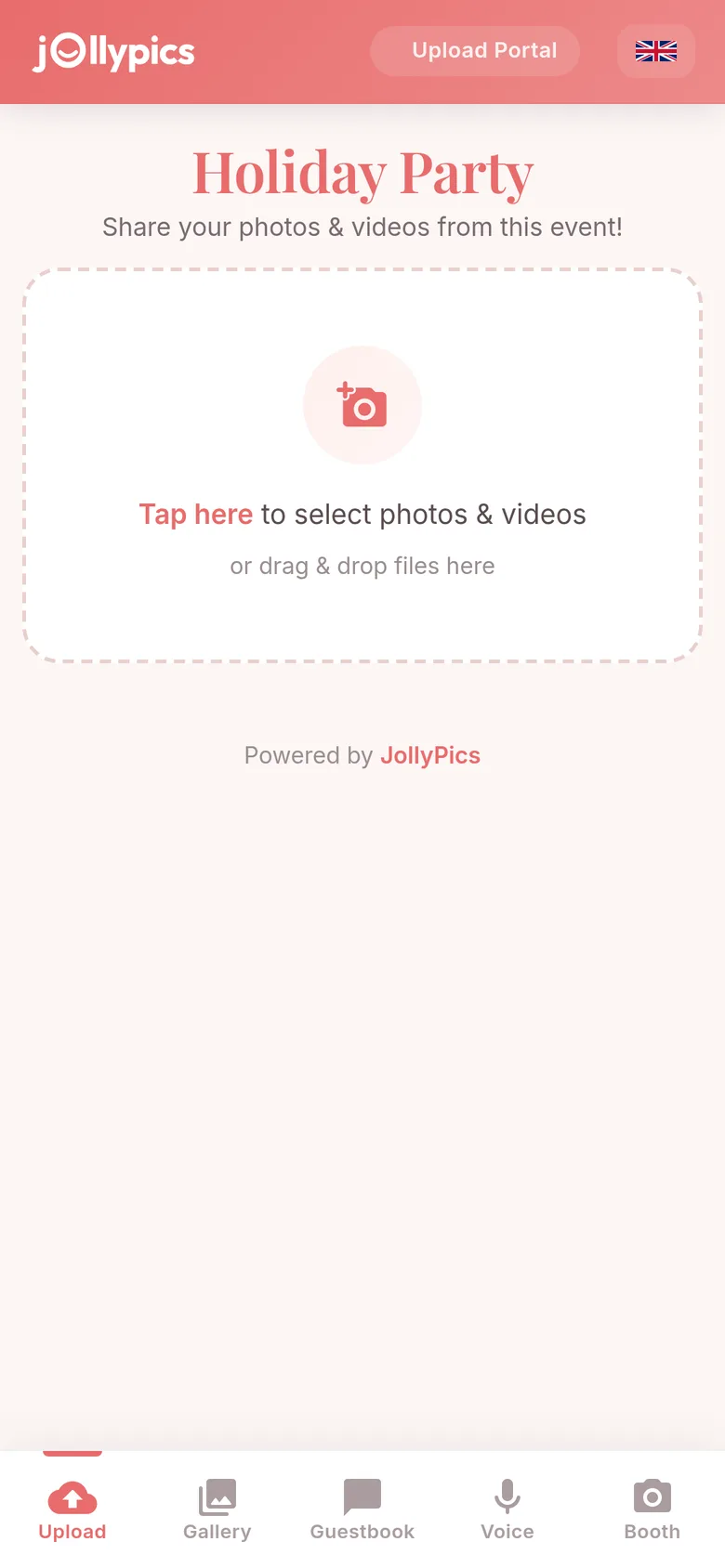
21. Create the event and name the folder before the party. Sign in with Google at JollyPics, name the event ("Holiday party photos") and you get a QR code, an upload link and a folder in your own Google Drive. Decide who owns the folder, who may look through it and who may post any of it, and say so on the sign. One honest note: the free Starter plan covers one event with up to 50 uploads, which is a trial for an office party, not a plan for the whole party. Thirty colleagues adding a few photos each will pass 50 quickly.
22. Upload the tripod phone's photos too. At the end of the night, scan the same code with the tripod phone and upload its shots, so the booth photos sit beside everyone else's instead of on one camera roll.
23. Send a short reminder the next morning. One line in the company channel with the link and a deadline brings in most of the stragglers. The ready-made messages in our guide to getting photos from everyone after a party work as they are. If the party has a screen, the live slideshow shows uploads as they arrive; it is a paid feature.
A paid extra for split teams. If the team is spread across sites, the JollyPics virtual photo booth lets anyone open a camera with frames and filters on the event page, take a shot and save it to the same Drive folder. It is part of the paid Event Plus plan, not the Starter plan (see plans).
30 minute setup checklist
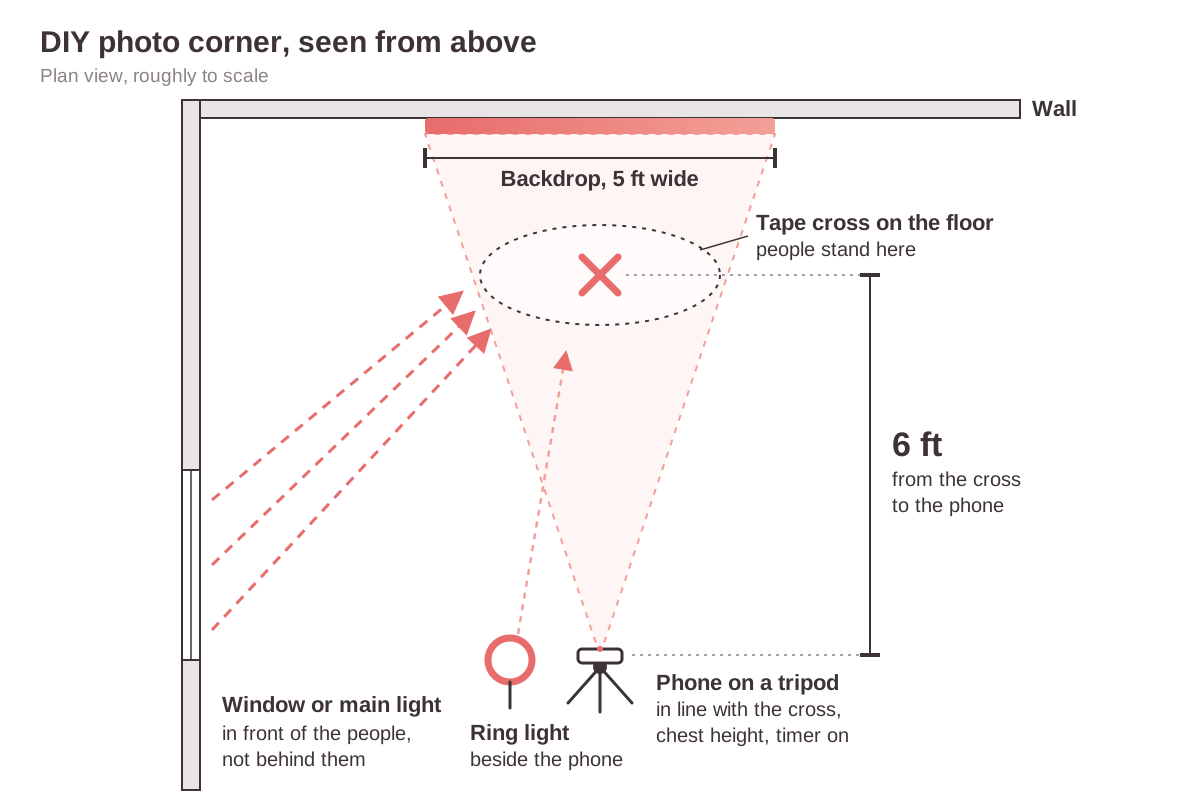
- Minutes 0 to 5: pick the spot. Near a window or a socket, away from the door and the food line, with a clean wall behind. Clear anything confidential from the frame.
- Minutes 5 to 12: hang the backdrop. Tape, or a stand. Aim for at least 5 feet wide and 4 feet high for a group of about five.
- Minutes 12 to 17: light it. String lights behind or beside, ring light or window light in front of the people, flash off.
- Minutes 17 to 22: set the phone. Tripod at chest height, upright or sideways, grid on, timer on (3 to 10 seconds), tap to focus, tape cross on the floor about 6 feet away. Plug in power.
- Minutes 22 to 26: props and sign. Wearables, speech bubbles and the printed sign with the QR code, prompts and the "optional" line.
- Minutes 26 to 30: test. Take three photos with two colleagues, check faces and background, then scan the code and upload one to confirm it lands in the Drive folder.
- During the party. One person runs the corner for the first 20 minutes; check battery and storage hourly; mention the QR code in the toast.
- The next morning. Send the one-line reminder with the link and a deadline.
Printable booth sign and photo prompts
A sign tells people what to do in the corner and where the photos go. Ours fits on one landscape page: seven photo prompts on the left, a space for your event's QR code on the right with the line "Scan to add your photos. No app, no sign-up.", and a small footer saying the corner is optional.
Here are twelve prompts. The seven marked "on the sign" are printed on it; use the rest on cards by the camera.
- Team portrait: one serious, one silly. (on the sign)
- High five someone from another team. (on the sign)
- Everybody jump (use burst). (on the sign)
- Pose as an ornament on the tree. (on the sign)
- Out of office until January. (on the sign)
- Hold up a card for someone who could not come. (on the sign)
- Snow globe pose: hold perfectly still. (on the sign)
- Pass the present, with a very surprised face.
- Red carpet walk-in.
- Silent movie: react to opening a gift.
- Act out your team's favorite emoji.
- Best hat stack, one hat each.
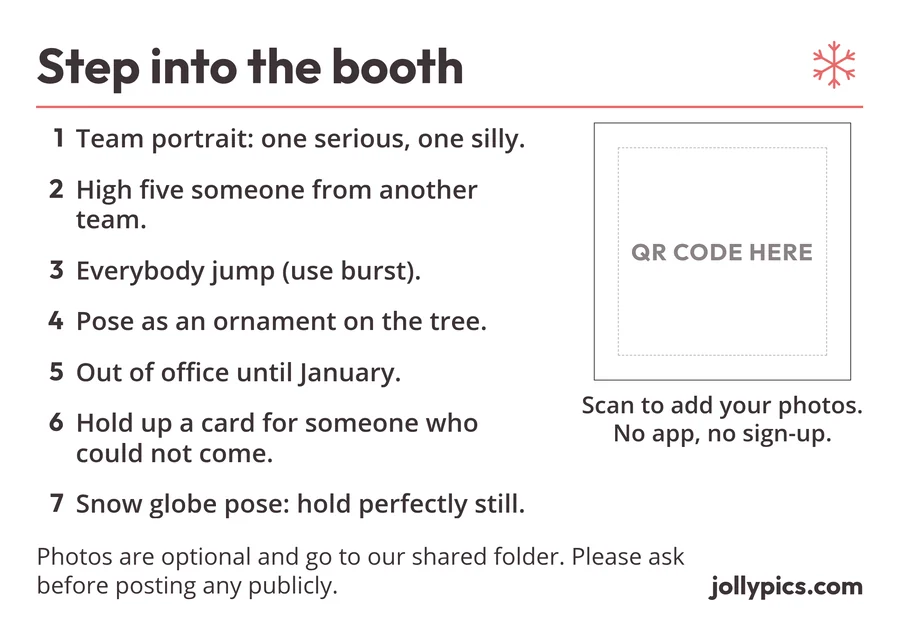
Print one copy on matte card at A4 or Letter size for the corner and half-size copies for the tables; our QR sign guide covers code size and glare. For other designs, see the QR sign templates, and for other lines under the code, the QR sign wording page.
Print the QR code sign and set up your office party in a minute.
Colleagues scan, upload, done.
Create your free QR codePhotos of colleagues: keep it optional and clear
A photo corner is social, and nobody should feel they have to join in. The ICO, the UK data protection regulator, notes in its guidance on valid consent that freely given consent is harder to obtain where there is an imbalance of power, naming employers in particular (the guidance was under review when we read it on October 7, 2026). Say on the sign and in the invite that the corner is optional, where the photos go and who can see them, and ask before anything goes on a public account or the company website. Outside the UK, check your company's policy. A full guide to office party photos and privacy is coming soon.
When a rented booth is worth it
A rental makes more sense when:
- You expect a big crowd. Rental companies put the point where DIY gets hard at around 50 to 75 guests (Event Brothers Co and Captured Celebrations, both rental businesses, checked October 7, 2026).
- You want prints people take home on the night.
- You want an attendant to run the line.
- It is a client or executive event where branded overlays matter.
- Nobody has 30 minutes to build and test a corner.
On price, rental companies quote roughly $450 to $1,000 for three to four hours in the US. Check Cherry's guide (updated August 10, 2026) puts the corporate median at $899 and Kruu lists $500 to $1,100 for corporate events (both checked October 7, 2026).
For the UK, Add to Event's price guide for London, dated June 26, 2024, gives an average of £390 for corporate events; expect more for an attended evening package.
Where JollyPics fits, and where it does not
You do not need JollyPics to build a good photo corner. Everything above works with any phone, and collecting photos by email afterwards is a perfectly good plan for a small team.
What JollyPics adds is the collecting: one QR code, an upload page that opens in any phone browser with no app and no account, and every photo in a folder in your own Google Drive, in high resolution with no watermarks.
- Starter plan (free): one event, up to 50 photos and videos, files up to 100 MB each. Fine for testing the setup; for an office party, treat it as a trial.
- Single event plan (paid): no upload cap for the whole party; paid plans also add the live slideshow for a screen.
- Event Plus (paid): adds the virtual photo booth with frames and filters.
- Unlimited (monthly): adds content moderation, so you approve photos before they appear, and gallery lock.
Plans and prices are on the pricing page, and more on office events is on corporate event photo sharing.
FAQ
How do I make a photo booth for an office Christmas party?
Pick a corner near a window or socket, hang a backdrop at least 5 feet wide, put soft light in front of people and set a phone on a tripod with the timer on. Add props and a printed sign with a QR code for uploads. The checklist above takes about 30 minutes.
What do I need for a DIY photo booth, and what does it cost?
A backdrop (wrapping paper or a foil fringe curtain), warm string lights, a ring light or window light, a phone tripod and a few props. At US prices listed at Target on October 7, 2026, a bare-bones corner came to about $49 and a fuller kit with a backdrop stand and Santa hats to about $146, by our own arithmetic.
How do I get everyone's photos into one place?
Put a QR code that opens an upload page at the corner and on the tables, upload the tripod phone's photos with the same code, and send one reminder the next morning. Everything lands in one folder.
Is a DIY booth good enough, or should we rent one?
For most office parties a DIY corner is enough. Rent when you want prints, an attendant or a client-ready setup, or when the guest list passes the 50 to 75 that rental companies name as the DIY limit.
Do I need permission to photograph colleagues at the party?
Keep the corner optional, say where the photos go and ask before posting anything publicly. The ICO notes that consent is harder to give freely where an employer is involved. Outside the UK, check your company's policy. This is practical advice, not legal advice.
Can the photo booth work without an app for guests?
Yes. Colleagues scan the QR code with their phone camera and upload from the browser, with no app and no account. The JollyPics virtual photo booth also runs in the browser on the same event page; it is part of the paid Event Plus plan (see plans).
One QR code, every colleague's photos, in your own Google Drive.
Create your free QR codeSources
- Target, Christmas wrapping paper rolls
- Target, foil fringe backdrop
- Target, backdrop stands
- Target, string lights
- Target, ring light with tripod
- Target, adult Santa hats
- Check Cherry, "How much does a photo booth rental cost"
- Kruu, "Cost to rent a photo booth"
- Add to Event, photo booth hire London price guide
- Event Brothers Co, DIY photo booth vs rental cost
- Captured Celebrations, DIY photo booth vs professional rental
- Apple, "Use iPhone camera tools to set up your shot"
- Apple, "Take Burst mode shots"
- Apple, "Take portraits"
- Google, Pixel Camera selfie timer
- Google, Pixel Camera Top Shot
- Google, Pixel Camera Night Sight
- Adobe Express, how to take portrait photos with your phone
- Adorama, "How to make a DIY photo booth for holiday parties"
- ICO, "What is valid consent?"