 Party guide
How to Get Photos From Everyone After a Party

The fastest way to get photos from everyone after a party is to give guests one place to put them: a link or QR code that opens an upload page in the phone browser, with no app and no account, so every photo lands in one folder you own. Send that link twice, once during the party and once the morning after, and you will get most of what people took.
Everything below explains how to do that, which method fits the size of your party, and exactly what to write when you ask.
Why "just send me your photos" never works
You know the pattern. Twenty people took photos. Three send a handful in the group chat, one promises to send them later, and the rest forget by Tuesday.
The problem is not that people do not want to share. It is that sharing takes steps: find the photos, pick them, choose how to send them, wait, repeat. Every step loses a few guests. So the goal is simple: one destination, as few taps as possible, and a reminder at the right moment.
Which method fits your party
Not every party needs a tool. A dinner for six where everyone has an iPhone is fine with a shared album. A 60 person birthday with mixed phones is not.
| Method | Works on iPhone and Android | Guests need an app or account | Effort for guests | Where the photos end up | Best for |
|---|---|---|---|---|---|
| Group chat (WhatsApp, iMessage, Messenger) | Yes | The chat app everyone already has | Low to send a few, tedious to send many | Scattered through the chat; you save them one by one | Under 10 people who already share a chat |
| AirDrop or Quick Share | No. AirDrop is Apple to Apple; Quick Share is Android, with sharing to Apple devices only on some newer phones | No account, but both people must be in the same room, about 30 cm apart for Quick Share | Low, but one guest at a time, while they are still there | Your own phone, as separate files | Grabbing a few favourites before people leave |
| iCloud Shared Album | Mostly Apple. Anyone can view via the Public Website link; adding photos from a non Apple phone needs the host and album on iOS 27 or later | Apple Account for contributors on iOS 26 and earlier | Low for Apple users, confusing for everyone else | The album in iCloud, capped at 100 participants | Small, all iPhone groups such as close family |
| Google Photos shared album | Yes | Viewing needs no account; adding photos usually asks the guest to sign in to a Google account | Medium: open link, sign in, add | A Google Photos album owned by you | Groups where everyone already uses Google Photos |
| Google Drive folder link | Yes, but on phones guests usually need the Google Drive app to upload | Google account, and usually the Drive app on the phone | Medium to high | A folder in your Drive; anyone with edit access can also see, move or delete files | Colleagues who all have a work Google account |
| Ask by text or email afterwards | Yes | Nothing new | High: pick, attach, send, often in several batches because of attachment limits | Your inbox and messages, mixed with everything else | Three to five people you will chase personally |
| QR code upload page (JollyPics) | Yes, any phone browser | No app, no account | Low: scan, pick photos, tap upload | A folder in your own Google Drive, one place, high resolution, no watermarks | Any party over about 10 guests, or any mix of iPhones and Androids |
The Apple and Google facts come from their official help pages, linked under Sources.
A few honest notes on the table:
- Small all iPhone gathering: an iCloud Shared Album is genuinely good enough. The trouble starts the moment one cousin has a Samsung.
- Office with Google Workspace: a shared Drive folder works if every colleague has the Drive app and is signed in. For a holiday party with partners and plus ones, it falls over.
- Google Photos: fine when everyone already uses it. If half your guests are iPhone users without a Google account, the sign in step is where you lose them. More in why Google Photos struggles at big events.
- Any mixed, larger group: a QR upload page removes the account problem entirely, which is why it wins for parties. The longer comparison is on group photo sharing.
The QR code upload page method, step by step
This is the method that gets the most photos from the most people, so here it is in full, split into before, during and after the party.
Before the party (ten minutes, a few days ahead)
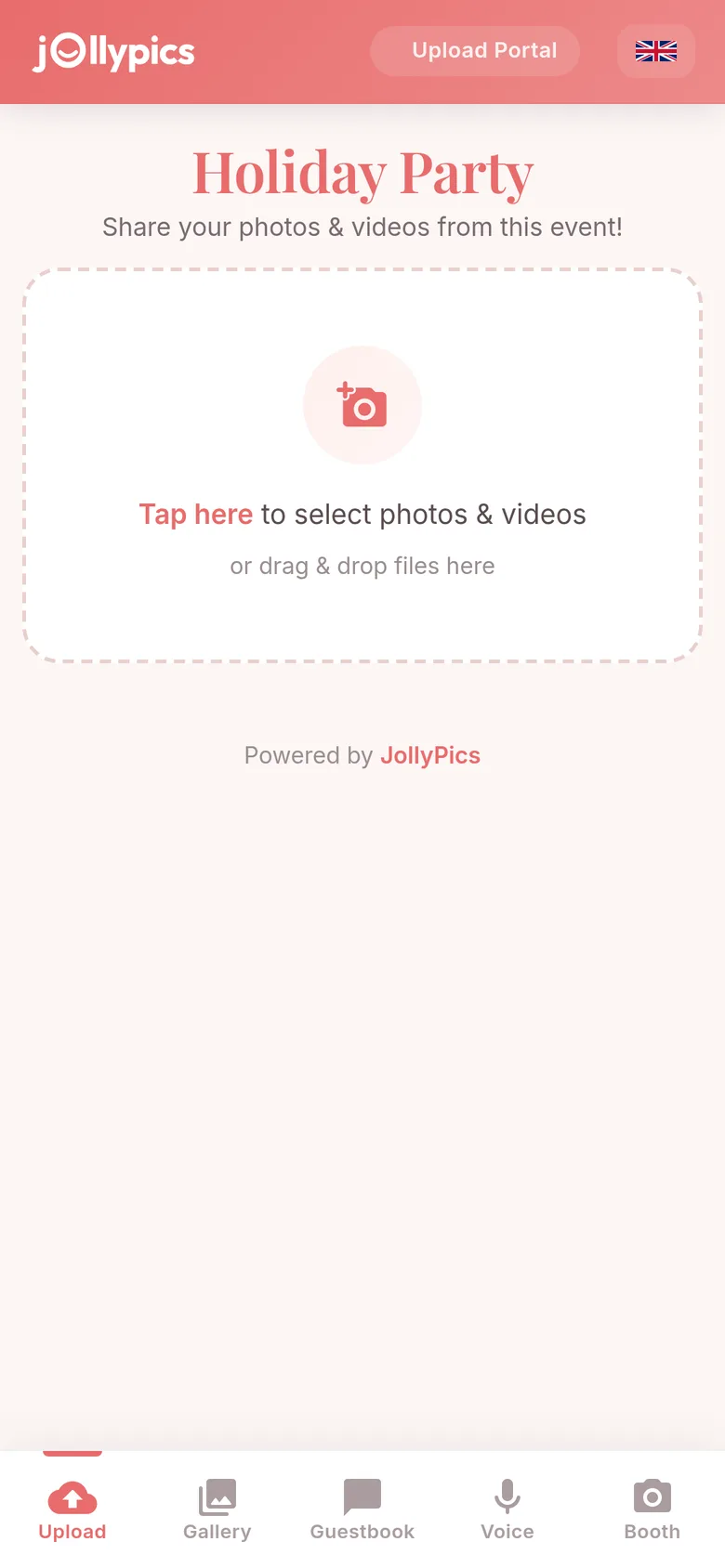
- Create the event. Sign in with Google at JollyPics, name the event ("Team holiday party", "Dad's 60th"), and you get a QR code and an upload link. The event's folder is created in your own Google Drive at the same time. The free Starter plan covers one event with up to 50 uploads and files up to 100 MB each, enough to try it or to run a small party.
- Print the QR code. One card per table, plus a larger sign at the entrance or by the drinks. Our free QR sign templates are ready to print, and the QR sign wording page has lines for birthdays, baby showers, office parties and more.
- Write the sign honestly. Three lines: what will happen, how to do it, the reassurance. "Help fill our album. Open your camera, point it at the code, tap the link. No app, no sign up."
- Share the link in advance in the invitation or the group chat. Early photos in the gallery encourage the rest.
During the party
- Put the code where phones already are. Next to the cake, on the bar, by the food, at the photo corner, on the inside of the bathroom door. People scan when they are standing still with a phone in hand, not while they are dancing.
- Say it out loud once. During the toast or when the cake comes out: "There is a QR code on every table, scan it and add your photos, it takes ten seconds." One spoken reminder beats five printed ones.
- Scan it yourself in front of someone. They will show others.
- If the venue has weak signal, write the Wi-Fi password under the QR code. Guests can also take photos all evening and upload later; the link stays open.
The day after
- Send the link again in the morning, when people are scrolling through their own photos from the night. This is the moment they are most likely to upload. Copy and paste messages are below.
- Share something back. A few highlights from the folder give people a reason to add their own.
- Keep the link open for a week and send one last reminder around day five to seven. After that, the photos you have are the photos you will get.
Everything arrives in a folder in your Google Drive, so there is no gallery to download from and nothing that expires. More in QR code photo sharing and our guide to collecting hundreds of photos without an app.
How to ask guests to send photos: copy and paste messages
The asking matters as much as the tool. Keep it short, make it one tap, and ask twice: during the party and the morning after.
During the party (group chat)
Hey all, quick one: scan the QR code on your table (or tap this link) to add your photos to tonight's album. No app, no sign up, takes ten seconds. [link]
The morning after (group chat)
Morning! Thank you for coming last night. If you took any photos, add them here so everyone can see them in one place: [link]. No app, just tap and upload. Even the blurry ones.
The morning after (individual text)
Hi [name], thank you for last night. You had your phone out during the speeches, could you add those to the album? [link]. Takes a few seconds, no app.
Email (office party, reunion, baby shower with older relatives)
Subject: Photos from Saturday, all in one place
Hello everyone,
Thank you for making Saturday such a good evening. It would be lovely to have everyone's photos together. Tap the link below, choose your photos and press upload. Nothing to install, no account to create.
[link]
The link stays open until [date]. Thank you!
Final reminder (day five to seven)
Last call for party photos! The album closes on [day]. If you have any you have not added yet: [link]
Tips that make these work:
- Personal beats mass. One direct message to the person who filmed the toast will get that video.
- Name the moment. "The photos you took when the cake came out" is easier to act on than "any photos".
- Say "no app" every time. It is the single biggest reason people hesitate.
- Thank people publicly when the first photos land. "20 photos in already, keep them coming" nudges the rest.
Notes by occasion
Birthday parties
The person who most wants the photos is in all of them and takes none. Set the event up before the day and put the code by the cake, because that is where every phone in the room points at the same moment. For kids' parties, send the link to parents the next morning; they take far more than they post. See birthday photo sharing.
Holiday and office parties
Mixed phones, plus ones who are not on the company chat, and a venue you do not control. A QR code on each table and a slide on the screen solves the first two; the link in the company channel solves the third. Agree beforehand who keeps the folder and who may post, and say so on the sign. More in corporate event photo sharing and our office Christmas party themes post.
Friendsgiving and Thanksgiving
Usually one long table and often an all iPhone crowd, in which case a Shared Album is honestly fine. If the group is mixed, one QR card leaned against the centrepiece does the job. Ask again on Sunday, when everyone is home and going through their camera roll.
Family reunions
Three or four generations, every kind of phone, and relatives who will not install anything. The upload page works for the teenager and the great aunt the same way. Post the plain link in the family chat for those who cannot scan, and ask one younger relative per table to be the "scan helper". Full plan in family reunion photo sharing.
Baby showers
Put the code on the gift table and read it out before the games. Send the morning after message from the host, not the parents, so they are not chasing anyone. See baby shower QR code photo sharing.
Weddings
Weddings are their own topic, with signage and a photographer in the mix. Start with wedding photo sharing.
What the free plan includes, and what it does not
- Free Starter plan: one event, up to 50 photos and videos, files up to 100 MB each, QR code and upload link, the folder in your Google Drive, and a written guestbook where guests can leave a message. No card needed.
- Paid, one time per event: no upload cap, files up to 1 GB, a custom QR code, password protection, an upload window with start and end time, and the live slideshow for a TV or projector during the party.
- Event Plus adds the virtual photobooth with frames, voice messages in the guestbook, and automatic sorting of uploads into folders per guest.
- Unlimited (monthly, for frequent hosts) adds gallery lock, so guests can upload but not browse, and content moderation, so you approve photos before they appear.
For a dinner party or a small birthday the free plan is often all you need. For a 50 person party where everyone uploads a dozen photos, you will want the single event plan. Details on the pricing page and in the FAQ.
FAQ
What is the easiest way to get photos from everyone after a party?
Give guests one link or QR code that opens an upload page in their phone browser, with no app and no account, and send it twice: during the party and the morning after. Every photo lands in one folder you own instead of being scattered across chats and inboxes.
How do I ask guests to send me their photos without being annoying?
Ask once during the party (a spoken reminder plus a sign) and once the morning after, then one last call about a week later. Keep the message to two lines, include the link, and say "no app, no sign up".
Is there a shared album that works for both iPhone and Android?
A browser based upload page works on any phone. Among the built in options, Google Photos shared albums work on both but usually ask guests to sign in to a Google account to add photos, and iCloud Shared Albums are built for Apple devices, with web contributions from other phones arriving only in Apple's latest software, according to Apple's Shared Albums guide.
Can guests upload without downloading an app or creating an account?
Yes, with a QR code upload page. Guests point the camera at the code, tap the link, pick photos and tap upload, all in the browser. See why guests do not need a Google account.
How long after a party do people still send photos?
Most arrive during the party and the following morning, with a smaller trickle over the next week once people have gone through their camera rolls. Keep the link open for at least a week and send one final reminder before you close it.
Do party photos collected this way expire?
With JollyPics they are files in your own Google Drive from the moment they upload, so they stay as long as you keep them. Shared albums and group chats are only as permanent as the account or chat they live in.
One QR code, every guest's photos, in your Google Drive.
Create your free QR codeSources
- Apple, "How to use Shared Albums in Photos on your iPhone, iPad, or Apple Vision Pro"
- Apple, "Shared Albums limits"
- Apple, "Use AirDrop on your iPhone or iPad"
- Google, "Share files with nearby devices using Quick Share"
- Google Photos Help, "Share photos & videos"
- Google Drive Help, "Share folders in Google Drive"